Creating Events
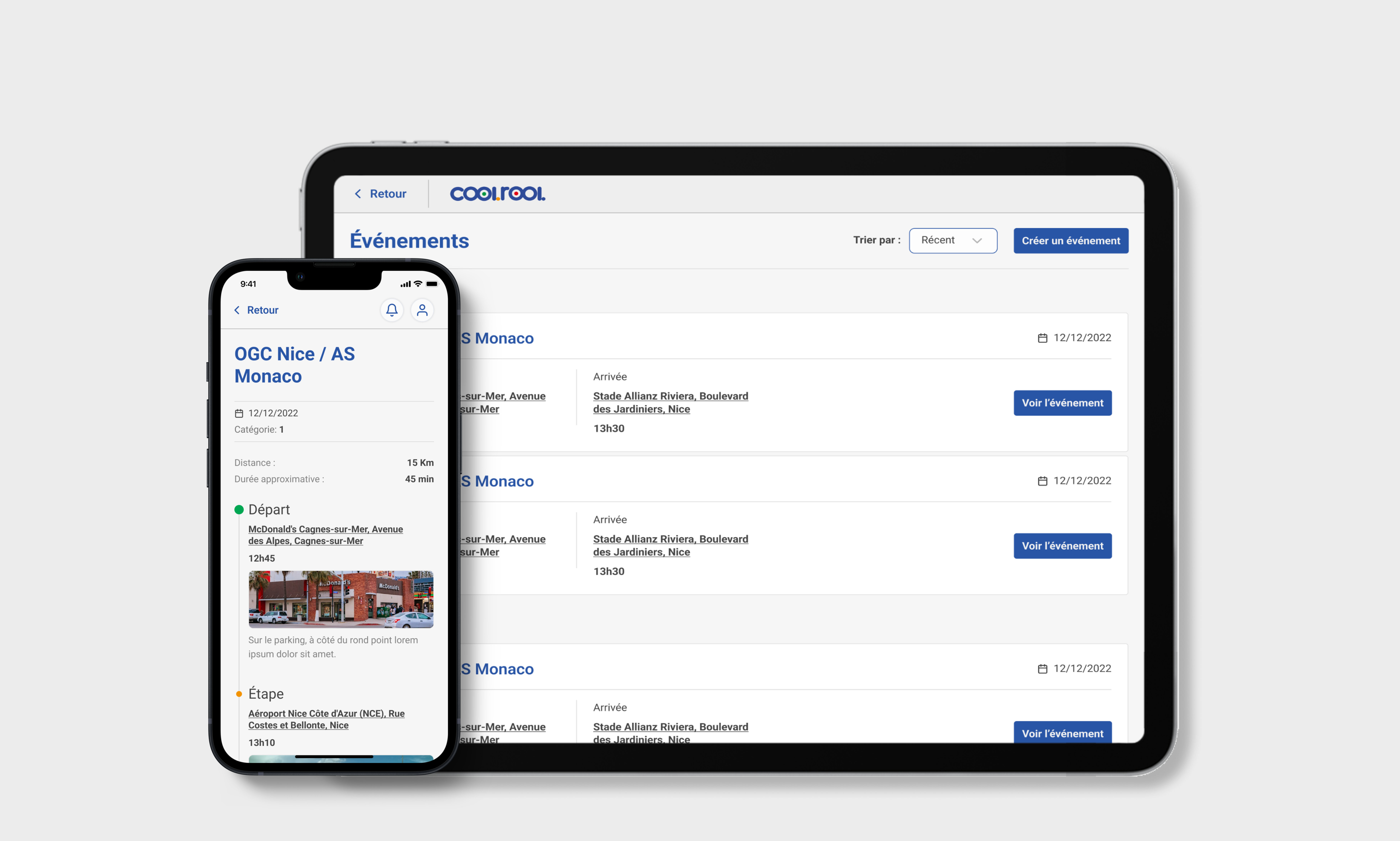
Events are a core feature of the COOLROOL app, allowing clubs to organize and coordinate matches, training sessions, and gatherings efficiently. This guide will walk you through the process of creating and managing events for your club.
Creating an Event
Follow these steps to create an event in the COOLROOL Clubs dashboard:
- Go to the Events section.
- Click Create Event.
- Fill in event details, such as event name, date & time, and location.
- Invite members to the event.
- Click Save to publish the event.
Once created, members will receive a notification to confirm their participation and indicate their carpooling preferences. They can confirm attendance directly in the app. In addition, you can track RSVPs and send reminders to non-respondents.
Coaches and club admins can also create and manage events from the COOLROOL mobile app. The process mirrors the dashboard functionality, ensuring seamless coordination on the go.
Assigning Drivers & Passengers
Once members have confirmed their attendance, you can easily match drivers with passengers based on vehicle capacity and location. Here's how to manage carpooling assignments:
- View the list of attendees.
- Check who has volunteered as a driver and their available seats.
- Assign passengers to drivers based on seat availability.
- Send confirmation notifications to all participants.