Managing Club Members
After getting access to the club dashboard, the first step is to add your members. Club administrators can import new members, update member information, and remove inactive members using the dashboard. This guide covers the steps for efficiently managing the Members section of the Clubs Dashboard.
Importing Members
Import your club members in a few simple steps:
- Go to Members in the dashboard
- Click Import Members File
- Get our CSV template and fill in your member data.
- Upload your CSV
- Click Confirm
- Members will get SMS invites to join your club right away.
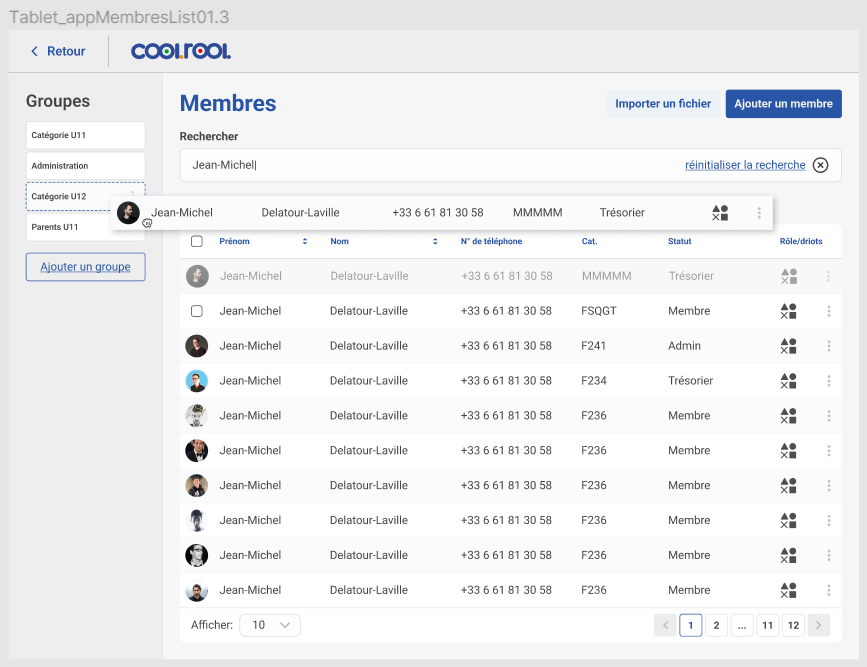
Use the correct phone format (+1XXXXXXXXXX) to ensure members get their invites.
Editing Member Information
To ensure member details remain accurate:
- Click on a member's name in the Members list.
- Update necessary fields such as contact details, carpool preferences, and assigned roles (driver, passenger, admin).
- Click Update to save changes.
Removing Members
If a member is no longer active or has left the club, you can remove them:
- Go to the Members section.
- Locate the member to be removed.
- Click Remove next to their name.
- Confirm the removal action.
Removing a member will revoke their access to club-related features within the COOLROOL app.